
If you own a business website, you may have seen alarming headlines this week about a critical PHP security flaw. Some websites reportedly went offline, security companies reported attacks, and many owners are asking one urgent question: is my WordPress website safe?
The honest answer is that it depends on the PHP version running on your server. The good news is that checking it takes only a few minutes, and the fix is usually a simple update. This guide explains what happened, how to check your PHP version, what to do next, and how to tell whether your website has already been affected.
What Is the PHP2Shell Vulnerability?
On October 21, 2026, the PHP project released emergency security updates for two critical vulnerabilities, tracked as CVE-2026-109618 and CVE-2026-109619. Security researchers and news outlets are calling the issue PHP2Shell. Both flaws are rated 9.2 on the CVSS v4.0 scale, which puts them firmly in the critical range.
In simple terms, these bugs can allow an attacker to run their own code on a vulnerable web server without needing a password. If that happens, the attacker may be able to take control of a website, steal data, or cause it to crash or go offline.
Here is what has been reported so far:
- Wide reach: The flaws affect a very wide range of PHP versions, so most servers running PHP could be exposed until they are updated.
- Attacks have been observed: Security companies, including Cloudflare, have reported exploitation attempts, and some activity was seen even before the public announcement.
- Details leaked early: Information about the flaws appeared publicly a day or two before the planned disclosure date, which gave attackers extra time.
- Website platforms affected: WordPress, Drupal, Magento, Joomla, Laravel, and other PHP applications are exposed if they run on a vulnerable PHP version.
Why This Matters for WordPress Websites
WordPress is built on PHP, which means your site depends on the PHP version installed on your hosting server. This is the key point most owners miss. The vulnerability is in PHP itself, not in WordPress core, your theme, or a specific plugin. That means:
- Keeping WordPress updated is important, but it is not enough on its own
- A perfectly maintained site can still be exposed if the server runs an unpatched PHP version
- The fix usually happens at the hosting level, not inside your WordPress dashboard
If your website generates leads, takes bookings, or sells products, a compromised server can quickly become a business problem, affecting revenue, customer trust, and even your Google rankings.
Which PHP Versions Include the Fix?
PHP released patched versions for the main supported branches. If you are running one of these versions or a newer release, you have the official fix:
| PHP Branch | Fixed Version |
|---|---|
| PHP 8.5 | 8.5.12 |
| PHP 8.4 | 8.4.27 |
| PHP 8.3 | 8.3.36 |
| PHP 8.2 | 8.2.35 |
If your site runs an older branch, such as PHP 7.x or early 8.x, check PHP’s official advisory for its status. Older branches that no longer receive security support may not get a fix at all, which means upgrading to a supported version is the safest path.
One important note: some hosting providers and Linux distributions apply security fixes to older packages without changing the version number you see. So a version that looks old might already be patched, while the reverse is never true. If you are unsure, ask your host to confirm directly that the PHP2Shell fixes have been applied.
How to Check Your PHP Version in WordPress
You have several easy options. Start with the first one, since it needs no technical skills.
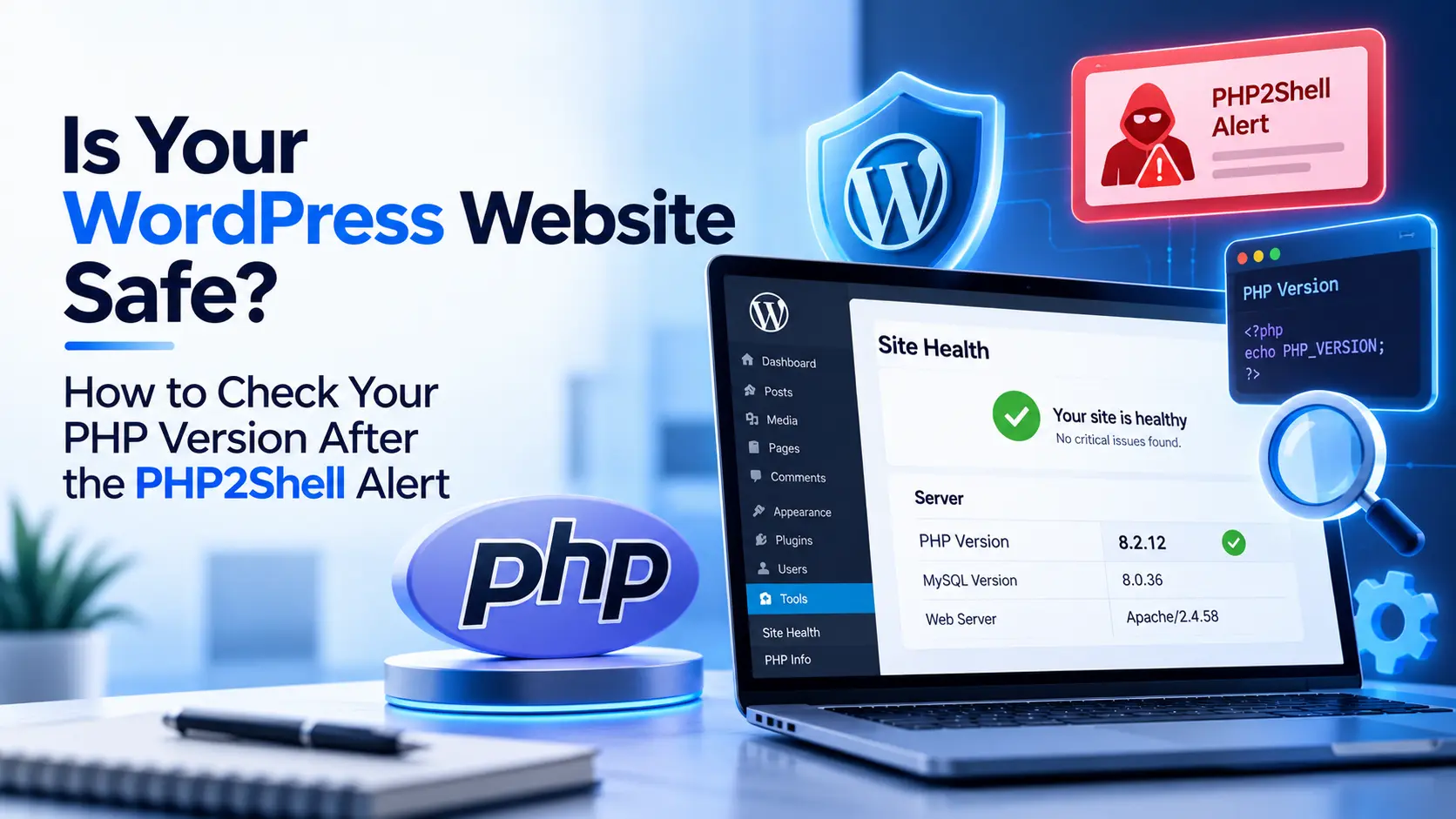
Method 1: Use WordPress Site Health
- Log in to your WordPress dashboard
- Go to Tools > Site Health
- Click the Info tab
- Expand the Server section
- Look for the line labeled PHP version
This shows the PHP version your website is actually running on right now, which is exactly what you need to know.
Method 2: Check Your Hosting Control Panel
Most hosting providers show the PHP version in their dashboard. Depending on your host, look for:
- cPanel: MultiPHP Manager or Select PHP Version
- Plesk: PHP Settings
- Custom hosting dashboards: A “PHP” or “Web Server” settings section
This method is also where you can usually change the version, which makes it useful for the next step.
Method 3: Ask Your Hosting Provider
If you cannot find the information, contact your host’s support team and ask three simple questions:
- Which PHP version is my website running?
- Have the fixes for CVE-2026-109618 and CVE-2026-109619 been applied?
- If not, when will they be applied, or how can I upgrade myself?
A good hosting provider will answer these clearly. If you get a vague response, treat that as a warning sign.
A Quick Warning About Test Files
You may see guides suggesting you upload a small file that displays PHP information. This works, but it can expose sensitive server details to anyone who finds it. If you ever create one, delete it immediately after use. The Site Health method above is safer.
What to Do If Your PHP Version Is Not Patched
If your version is older than the fixed releases listed above, take these steps in order.
Step 1: Back Up Your Website
Before changing anything, create a full backup of your files and database. If something goes wrong during the update, you can restore your site quickly.
Step 2: Update PHP Through Your Host
Use your hosting control panel to switch to a patched, supported PHP version, or ask your provider to do it for you. For long term stability, aim for PHP 8.4 or 8.5, since PHP 8.2 stops receiving security fixes at the end of 2026.
Step 3: Test Your Website Thoroughly
After the update, visit your homepage, key service pages, contact forms, checkout pages (if you run an online store), and the WordPress admin area. Older plugins or themes sometimes behave differently on newer PHP versions, so look for error messages, broken layouts, or features that stopped working. If possible, test on a staging copy of your site first.
Step 4: Update WordPress, Themes, and Plugins
Once PHP is updated, bring everything else up to date as well. Remove plugins and themes you no longer use, since each one is a potential weak point. Replace anything that is abandoned by its developer.
Step 5: Add a Web Application Firewall
A firewall service can block many malicious requests before they reach your server. Cloudflare and other providers have rolled out protection rules for this vulnerability. A firewall is a useful extra layer, but it is not a substitute for updating PHP.
About Temporary Mitigations
PHP has published temporary configuration settings that reduce exposure to certain attack paths. These are meant as short term measures only and do not make an installation fully safe. If you cannot update immediately, speak with your host or developer about these options, but plan the real update as soon as possible.
How to Tell If Your Website Has Already Been Hacked
Because attacks were reported around the time of disclosure, it is wise to check for signs of compromise, especially if your site was running an unpatched version for any length of time. Watch for:
- Unknown admin users in your WordPress Users list
- Unexpected redirects that send visitors to other websites
- Strange pages or text in your Google search results, such as unrelated product or spam content (try searching
site:yourwebsite.comon Google) - Files you did not upload or recently changed files you cannot explain
- Sudden traffic drops or unusual spikes in server usage
- Warnings from your host, browser, or Google Search Console about malware or security issues
- Emails or messages from customers reporting suspicious behavior on your website
If you notice any of these, contact your host and a security professional right away. Change all passwords, including WordPress, hosting, database, and FTP, and consider restoring a clean backup made before the problem started.
How a Security Problem Can Hurt Your SEO
Website security and search visibility are closely connected. If attackers inject spam pages or malicious links into your site, Google may flag it, show warning messages, or lower your rankings. Hacked content is also considered a form of spam under Google’s policies, so a security breach can have lasting SEO effects even after the site is cleaned.
This is why it is smart to check Google Search Console for security issues and manual actions after any major vulnerability alert. A professional Site Audit can help identify injected content, suspicious links, and crawl problems, while strong Technical SEO practices keep your website healthy and easier for search engines to trust.
How to Prevent Problems Like This in the Future
The PHP2Shell alert is a reminder that website security is an ongoing job, not a one time task. Build these habits into your routine:
- Keep PHP on a supported version and plan upgrades before support ends
- Update WordPress core, themes, and plugins regularly
- Run automatic backups and store them away from your main server
- Use strong, unique passwords and enable two factor authentication
- Limit admin accounts to people who genuinely need access
- Monitor your website for uptime, file changes, and security alerts
- Choose a hosting provider that patches quickly and communicates clearly
Frequently Asked Questions
Does this affect only WordPress websites?
No. Any website or application running on a vulnerable PHP version can be affected, including Drupal, Joomla, Magento, Laravel, and custom PHP sites.
Is updating WordPress enough to protect my website?
Not by itself. The flaw is in PHP, so the PHP version on your server must also be updated or patched. WordPress updates are still important, but they do not replace a PHP update.
Will updating PHP break my website?
It can, particularly if your site uses outdated plugins or themes. That is why backups and testing, ideally on a staging copy, are important before and after the change.
Do I need to take my website offline?
Some organizations chose to take sites offline temporarily while patching. For most business sites, a quick update with a good backup is the practical route. If you cannot update soon and your site handles sensitive data, speak with your host or a security professional about the safest option.
How often should I check my PHP version?
Check it at least a few times a year and whenever a major security alert appears. A managed maintenance plan can automate this for you.
Final Thoughts
The PHP2Shell alert is serious, but it is also manageable. For most WordPress owners, the steps are simple: check your PHP version, confirm it includes the fix or ask your host to confirm, back up your website, update safely, and watch for any signs of trouble. Acting quickly protects your data, your customers, and your search rankings.
If you would rather not handle this alone, Zenerom’s WordPress Development and Maintenance services in Kochi can help with updates, backups, security monitoring, and ongoing technical support, so your website stays secure and running smoothly. You can also explore our wider Web Development services for new builds and redesigns.

